
SymbolicDrop
Create symbolic links from Finder.
Mac
A simple way to make symbolic links.
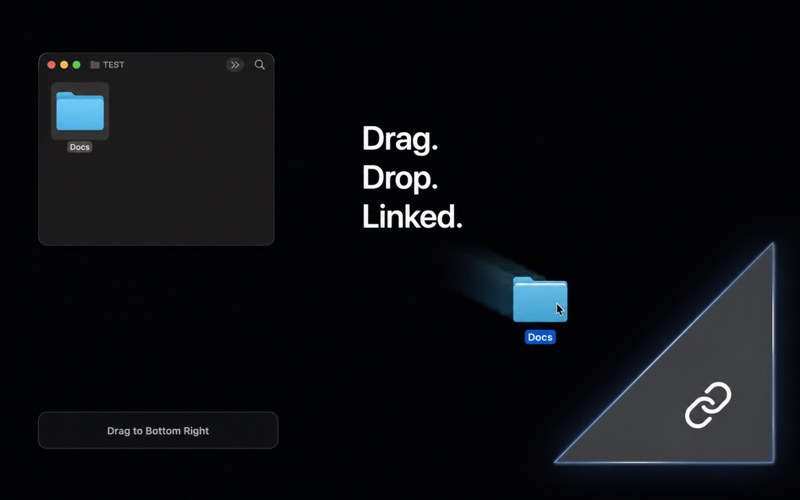
Drag a Finder item to SymbolicDrop’s floating target to create a link, without using Terminal.
Select. Drag. Drop.
- Choose an item in Finder
- Select a local file or folder.
- Hold Command + Shift
- Keep ⌘ + ⇧ pressed while dragging the item.
- Drop on the floating target
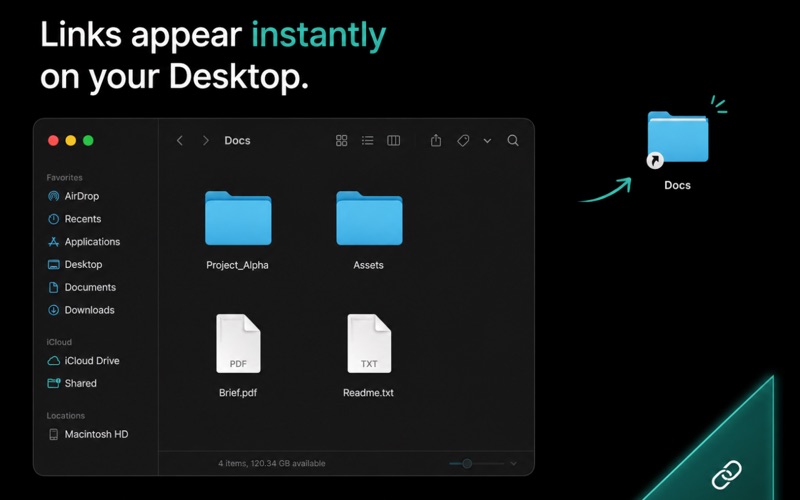
- SymbolicDrop creates a symbolic link in your selected destination folder.
The Finder workflow, in view
Current Mac App Store screenshots, shown in English.

Choose where links go
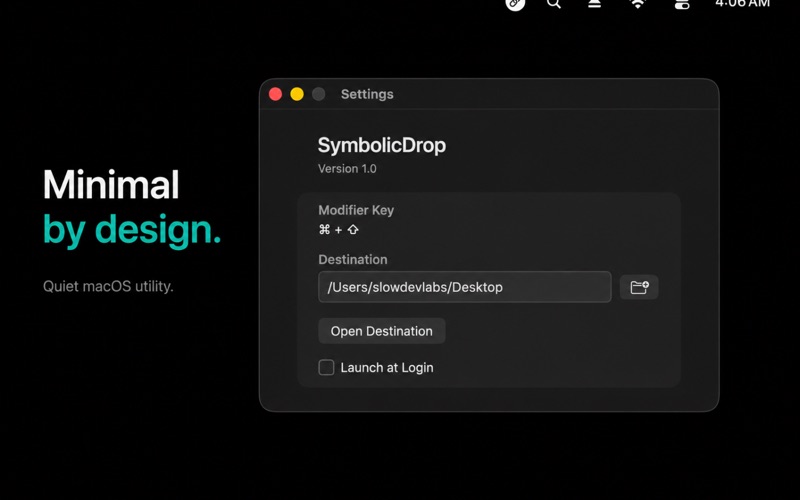
Set the destination folder in Settings. SymbolicDrop creates each new link there; it does not move the original item.
A link, not a copy
A symbolic link points to the file or folder you selected. Creating the link does not duplicate the original file contents.
A few useful Mac controls
- Floating target
- Drop the selected Finder item on the target to create a link.
- Menu bar controls
- Access SymbolicDrop controls from the menu bar.
- Settings
- Choose a destination folder or set SymbolicDrop to launch at login.
- File access
- macOS may ask for file or folder access when needed.
Information
- Platform
- Mac
- Minimum OS
- macOS 13.5 or later
- Age
- 4+
- Price
- Free
- Languages
- 25 languages, including English, Korean, and Spanish
- Category
- Utilities
- Developer
- SlowDevLabs